Giving Peer Notes
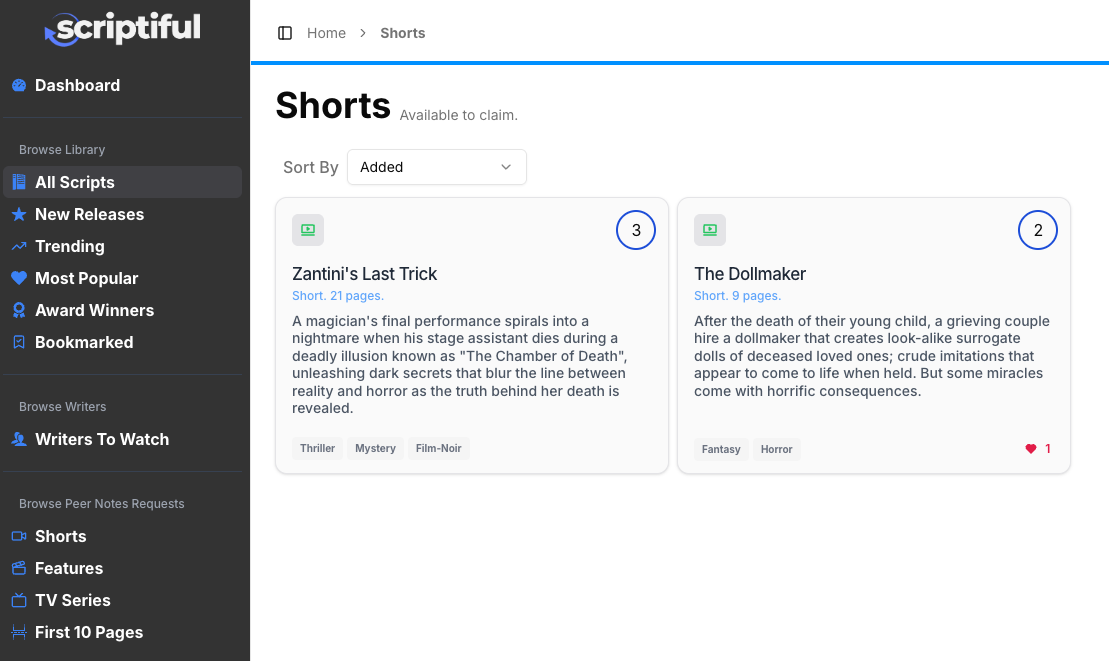
All users can request and give peer notes on scripts. Scripts that are available to claim are visible in the directory categories in the left menu, broken down into Shorts, Features and TV Series/Television and First 10 Pages.
Claiming A Script
If you find a script you'd like give notes on just simply click the script card to reveal more information.
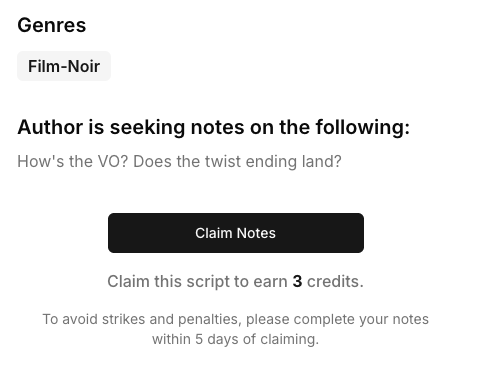
Click the Claim Notes button to open the claim form.
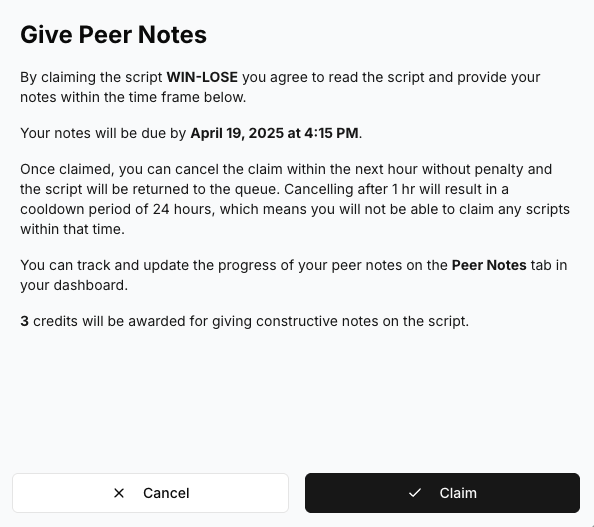
If happy with the due date and amount of credits, simply click the Claim button to claim the script.
Review The Script & Give Notes
Visit the Peer Notes tab on your dashboard and click the Notes Claimed tab.
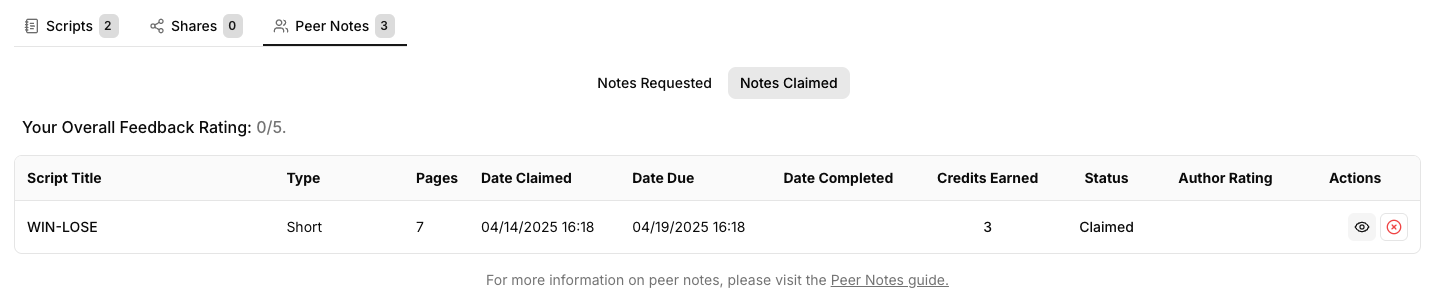
Note the Date Due. This is when your script notes are due by.
You can reject or cancel claim within 1 hr of claiming a script, without penalty. This gives you a short window to open the script and review it's contents. To reject/cancel the claim, simply click the X icon under Actions. This will remove the script from your list and add it back to the queue without notifiying the author.
You can continue to reject/cancel the claim after 1hr and upto 48 hours from the claim date. Rejecting/cancelling the claim after 1hr however, will result in a penalty strike and prevent you from claiming another script for 24 hours. If you receive 3 strikes, your peer capabilities will be put on hold until our team have reviewed your account. This does not affect your ability to host and share scripts, however.
Review The Script
When ready, click the Eye icon under Actions to open the script PDF in a new browser tab. You can read the script at your own pace and return to read it at any time.
Completing Your Notes
Once you've completed reading the script, a new icon  will appear under Actions. Click this to start leaving your notes.

Using the author's comments as a guide (if the author left comments) leave your positive and negative feedback in the areas provided. The minimum length is 300 words per section, but strive to leave more and be as detailed as possible.
Click the Save Draft button to save your progress at any time if you need to return later to complete your feedback.
Followup Questions
When you've completed the positive and negative notes, proceed onto the questions screen. Here you'll be presented with a handful of questions relating to the script, your positive and negative feedback as well as the author's comments, if provided. There is no minimum word limit for each question and this area shoud serve a supplemental feedback related to what the author was looking for.
Add any additional last comment then rate the review. When ready, click the Submit Notes button.